iCloud Backup, Restore and Sync
Keep your certificates safe and synced across all your devices. Never lose your work again.
NOTE: This tutorial applies to iCertifi, iCertifi Cloud Pro handles backup and sync automatically
Why Backup Your Certificates?
Your electrical certificates represent hours of work and are legally required documentation. iCertifi iCloud backup ensures your certificates are always protected and accessible from any device on your Apple ID.
Device Protection
Lost or broken phone? Restore your certificates to a new device in minutes.
Multi-Device Sync
Start a certificate on your iPad, finish it on your iPhone or Mac.
Peace of Mind
Your work is safely stored in iCloud, encrypted and secure.
How to Backup Your Certificates
Step 1: Open Backup and Restore
From the iCertifi home screen, tap the Backup and Restore option. This opens the iCloud sync screen where you can manage all your backup settings.
Step 2: Tap Backup
Tap the Backup button to upload all your certificates to iCloud. You will see a progress indicator while your data is being uploaded. Make sure you have an active internet connection.
Step 3: Confirmation
Once complete, you will see a confirmation showing the backup time and which device performed the backup.
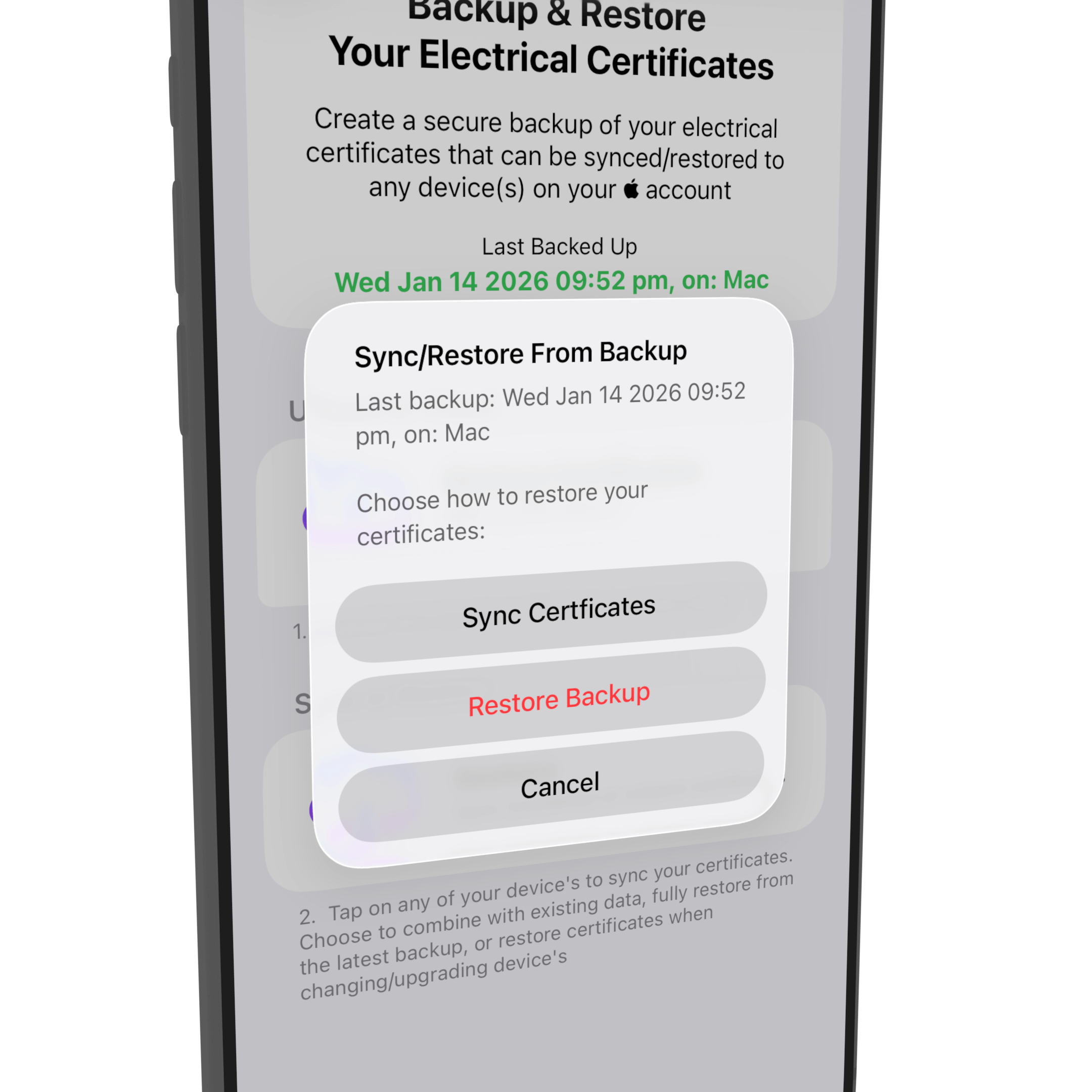
Pro Tip: Backup regularly, especially after completing important certificates. We recommend backing up at the end of each working day.
How to Restore Your Certificates
iCertifi offers two restore options:
Combine with Existing
Imports new certificates from the backup without affecting your current data. Duplicates are automatically skipped. Ideal for syncing between devices.
Full Restore (Replace All)
Completely replaces all certificates on this device with the backup. Use when setting up a new device or recovering from data loss.
To Restore:
1. Open Backup and Restore from the home screen
2. Tap Restore
3. Review the backup information
4. Choose Combine with Existing or Full Restore
5. Wait for the restore to complete
Syncing Between Devices
iCertifi makes it easy to work across your iPhone, iPad, and Mac. When a backup is made on one device, other devices will detect it automatically.
New Backup Notification
When another device backs up to iCloud, you will see a flashing indicator. The restore dialog shows which device created the backup and when.
Recommended Sync Workflow
1. Finish work on Device A
2. Backup from Device A
3. Open iCertifi on Device B
4. Tap Restore, then Combine
5. All certificates are now on both devices
Frequently Asked Questions
What is the difference between Combine and Full Restore?
Combine adds new certificates without deleting anything. Full Restore replaces everything with the backup.
Do I need an internet connection?
Yes, Wi-Fi or mobile data is required for backup and restore. Certificates are stored locally so you can work offline.
Is my data secure?
Yes. Your backup is stored in your personal iCloud account, encrypted by Apple.
Can I restore to a new device?
Yes. Install iCertifi on your new device, sign in with the same Apple ID, and use Full Restore.
Protect Your Certificates Today
iCloud Backup and Sync is available now in iCertifi
The full range of BS 7671 electrical certificates. EIC, EICR and Minor Works, with the calculators built in – Zs verification, R1+R2, PFC and cable sizing.