Book the visit. Your customer confirms it.
The Diary in iCertifi Cloud Pro keeps every visit you book in one place, emails your customer to confirm it, and turns each visit into a certificate with the client and address filled in.
-
No phone tag. Customers answer Accept, Decline or Ask for another time.
-
Nothing typed twice. Book from Client Hub or Retests due.
-
Part of your subscription. On iPhone and iPad, at no extra charge.

Less chasing. More jobs done.
Confirming visits by phone and text eats into the day. The Diary does the asking for you, from your business, and shows you the answer.
Every job in one place
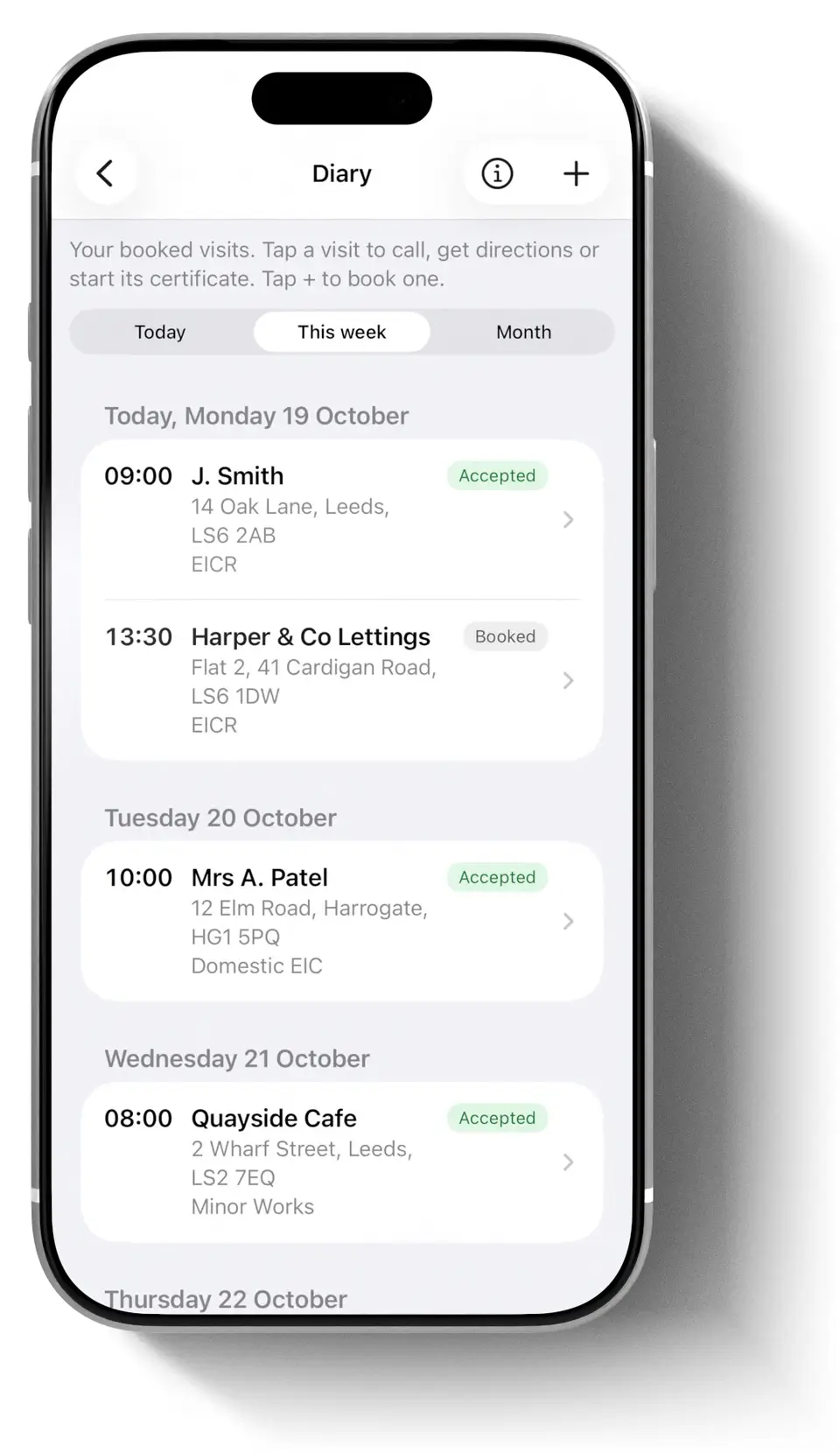
Today, this week, or any day on the month calendar. A dot marks each day that has visits.
Customers confirm by email
One tap sends them the day and time from your business name. They answer Accept, Decline or Ask for another time, so there is no phone tag.
You hear when they answer
A notification tells you, and the visit’s label changes to Accepted, Declined or Wants a new time.
Nothing typed twice
Book from a client in Client Hub and their details are filled in. Start certificate carries the client and the visit’s address onto the certificate.
Ready on the day
Call the customer and get directions from the visit. Switch on Add to my phone calendar and it shows in your Calendar app too.
Changes handled
Move or cancel a visit and Cloud Pro offers to email your customer the change. You see the exact email before it goes.
The Diary in under a minute. The customer and address shown are examples.
Five steps, booking to certificate
Book a visit
In the Diary, tap +. Choose the client from Client Hub, check the address of the visit, then the day, the start time, how long it takes and the certificate you will do, and tap Save.
The address starts as the client’s and can be changed when the job is somewhere else, such as a tenant’s home. You can also tap Book a visit on a client in Client Hub, or on a certificate in Retests due.

Send a confirmation
Open the visit and tap Send confirmation. You see the exact email first, from your business name, and it goes when you say so.

Your customer answers
They get this email and tap Accept, Decline or Ask for another time. They do not need an app or an account.

You hear when they answer
A notification tells you, and the visit’s label changes to Accepted, Declined or Wants a new time. If they ask for another time, their words show on the visit, so you can call and agree a better one.

On the day
Open the visit to call ahead and get directions in Apple Maps. When you arrive, tap Start certificate: it opens with the client and the address filled in, and the visit shows Done once you save it.

Your visits, where you already look

On the Home screen
Your next visit sits on Home: when, who, the job and where it stands. Tap it to open the Diary.

In Client Hub
Each client shows their visits, with Book a visit right there. In Retests due, swipe a certificate or touch and hold it to book the retest.

On your iPad too
Bookings stay in step on your iPhone and iPad through your iCloud. They are your own diary, never shared with a team.
About the Diary
Is the Diary included in my subscription?
Yes. The Diary comes with every iCertifi Cloud Pro subscription, and confirmation emails cost nothing extra. Without a subscription you can still open the Diary card on the Home screen to see what it does.
Does my customer need an app or an account?
No. They get an email with three buttons: Accept, Decline and Ask for another time. If they ask for another time, they can say when suits them better, and you see their words on the visit.
Who does the email come from?
It comes from noreply@icertifi.co.uk in your business name. You see the exact email before it goes. If your customer replies, the reply goes to the reply email you set in the Diary.
How do I know when my customer answers?
Cloud Pro checks for answers when you open it, and a notification tells you who answered. Tap it to open the visit. The answer shows on the visit, and its label changes to Accepted, Declined or Wants a new time.
What if I need to move or cancel a visit?
Tap Edit on the visit and change the day or time, or tap Cancel booking. If your customer was sent a confirmation, Cloud Pro offers to email them the change. A cancelled visit stays in your Diary marked as cancelled: nothing is deleted.
Does my team see my bookings?
No. Bookings are your own diary. They stay in step on your iPhone and iPad through your iCloud, never in a team’s shared certificates, and only you see the notes.
Can the visits go in my phone’s calendar?
Yes. Switch on Add to my phone calendar when you book, and the visit shows in the Calendar app on that device. It moves when you move the booking, and goes when you cancel it.
Can my customer stop the emails?
Yes. Every email has a link to stop emails sent through iCertifi. See our privacy policy for exactly what is kept.
Try the Diary on your next visit
Open iCertifi Cloud Pro, tap the Diary card on the Home screen and book your first visit. The first time you open it, Cloud Pro shows you how it works.