The paper schedule of test results lays the whole board out on one sheet: one row per circuit, a column for every reading. On a phone or tablet, one circuit at a time suits the screen, but there are moments you want the whole board in front of you.
iCertifi gives you both. Hold your iPad or iPhone upright and you get one circuit at a time, with big boxes, Quick Fill and the Assistant. Turn it sideways and the board becomes a traditional circuit chart you can fill in box by box. It works the same in iCertifi and iCertifi Cloud Pro.
Upright for one circuit, sideways for the whole board.
Two ways to fill in the same circuits
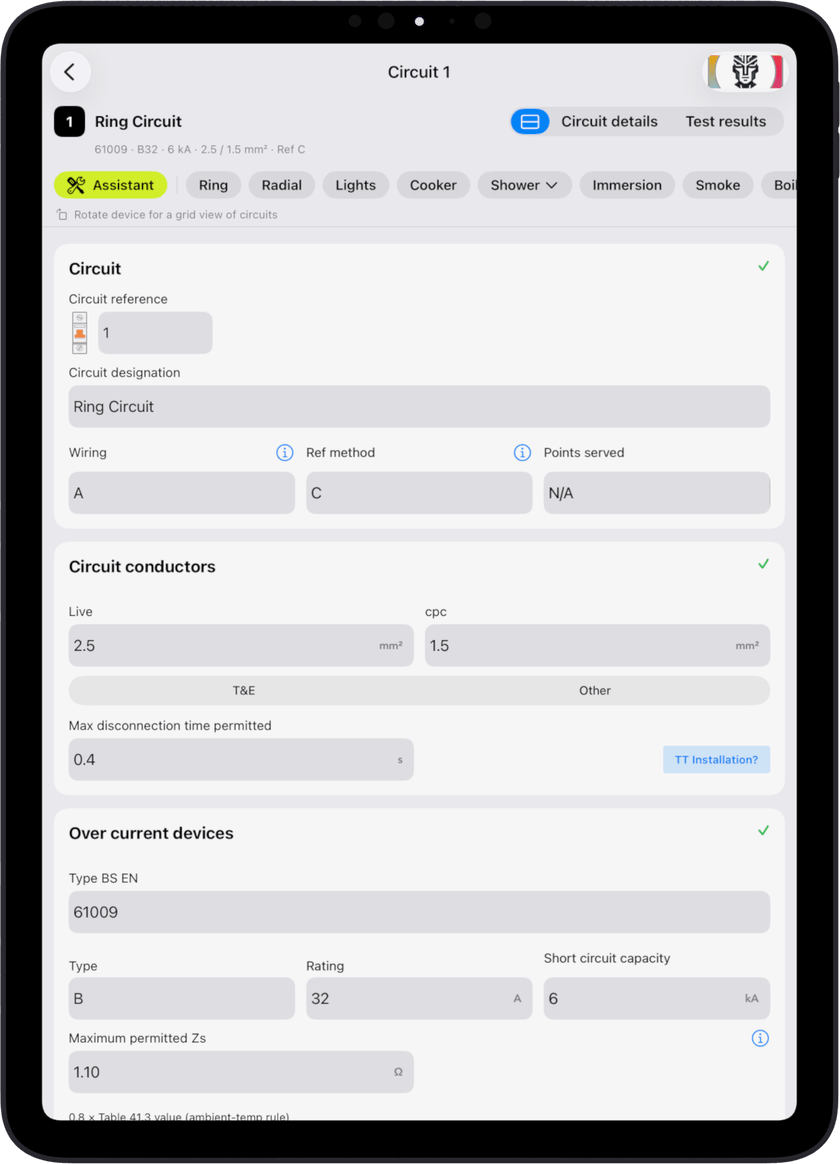
Upright, the circuit page shows one circuit with its circuit details and test results. It suits a new installation, where you work through each circuit in turn and let Quick Fill (Ring, Radial, Lights, Cooker and the rest) do the typing.
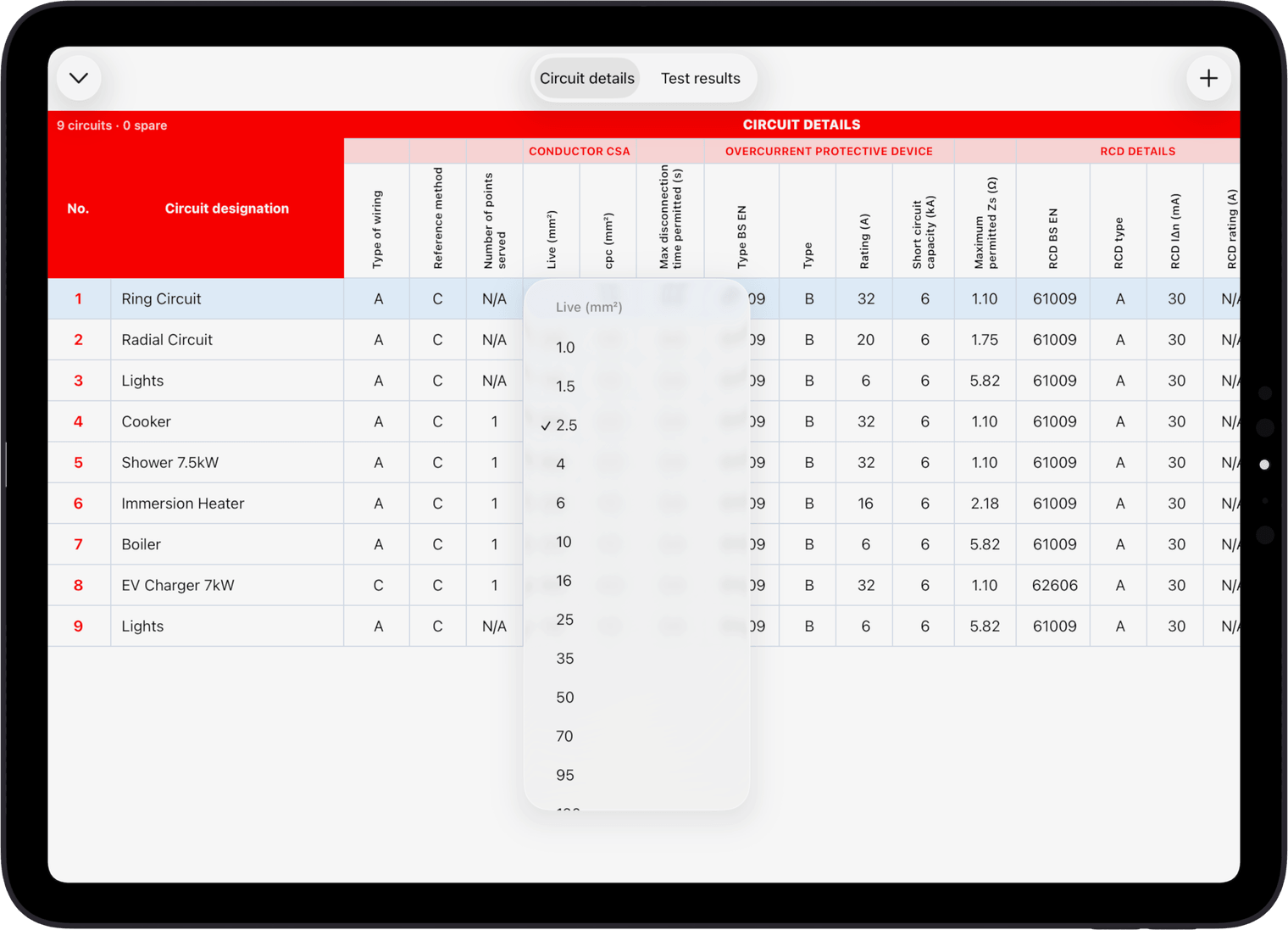
Sideways, the Schedule of Test Results shows one row per circuit and every column the schedule prints, in the order it prints them. It suits checking a whole board, copying a column of readings off your tester, or spotting the circuit you have not finished.
Both write to the same circuits. Type a reading in the chart, turn back upright, and the circuit page shows it.
How to open the circuit chart
Open a circuitOpen the certificate, choose the board, then tap a circuit.
Turn your iPad or iPhone sidewaysThe Schedule of Test Results opens with that circuit’s row highlighted, so your eye lands in the right place.
Tap any boxPick lists offer the same values as the circuit page. Readings bring up the keyboard.
Turn it back uprightYou are back on the circuit page, showing what you typed in the chart.
You can also open the same chart from Detailed View on the board page, or from Schedule of Test Results in the circuit page’s Assistant menu. Opened that way it stays open when you turn the device; tap the arrow at the top left to go back. On iPad only a real turn opens it, so resizing the app in Split View or Stage Manager will not.
Filling in a whole board quickly
- Circuit details or Test results: the switch at the top swaps between the two halves of the schedule
- No. and Circuit designation stay put while the rest of the columns scroll sideways
- Return moves down the column to the next circuit and skips spare ways, so a column of Zs readings goes in without lifting your eyes from the tester
- N/A, Lim and Clear sit on the keyboard bar
- Maximum permitted Zs follows the breaker: change the device type or rating and it is worked out again, unless you typed your own
- Readings are checked as you go: insulation resistance, measured Zs, RCD times and ring continuity are coloured orange or red by the same rules as the circuit page
- L1, L2 and L3 rows are tinted on three phase boards, and the corner shows how many circuits and spares the board has
- Add circuits without leaving the chart: the + button opens the board’s Add Circuit(s) menu
Which way round for which job
There is no right answer, and you can swap as often as you like. One way that works well: fill in the circuit details upright as you go round the board, then turn the iPad sideways for the test results, so each column goes in straight down, just like the paper sheet.