Open an EICR on a commercial job with a main switch panel, a dozen distribution boards and a few sub-boards hanging off them, and the first question anyone asks is simple: what feeds what? The answer is usually in there somewhere, spread across twenty pages of board details.
iCertifi now draws it for you. Turn on the Board Diagram page and every certificate with two or more boards gets a distribution diagram: the supply, each board, and the board that feeds it, laid out as a clear DB schematic on its own PDF page. It is in both iCertifi and iCertifi Cloud Pro.
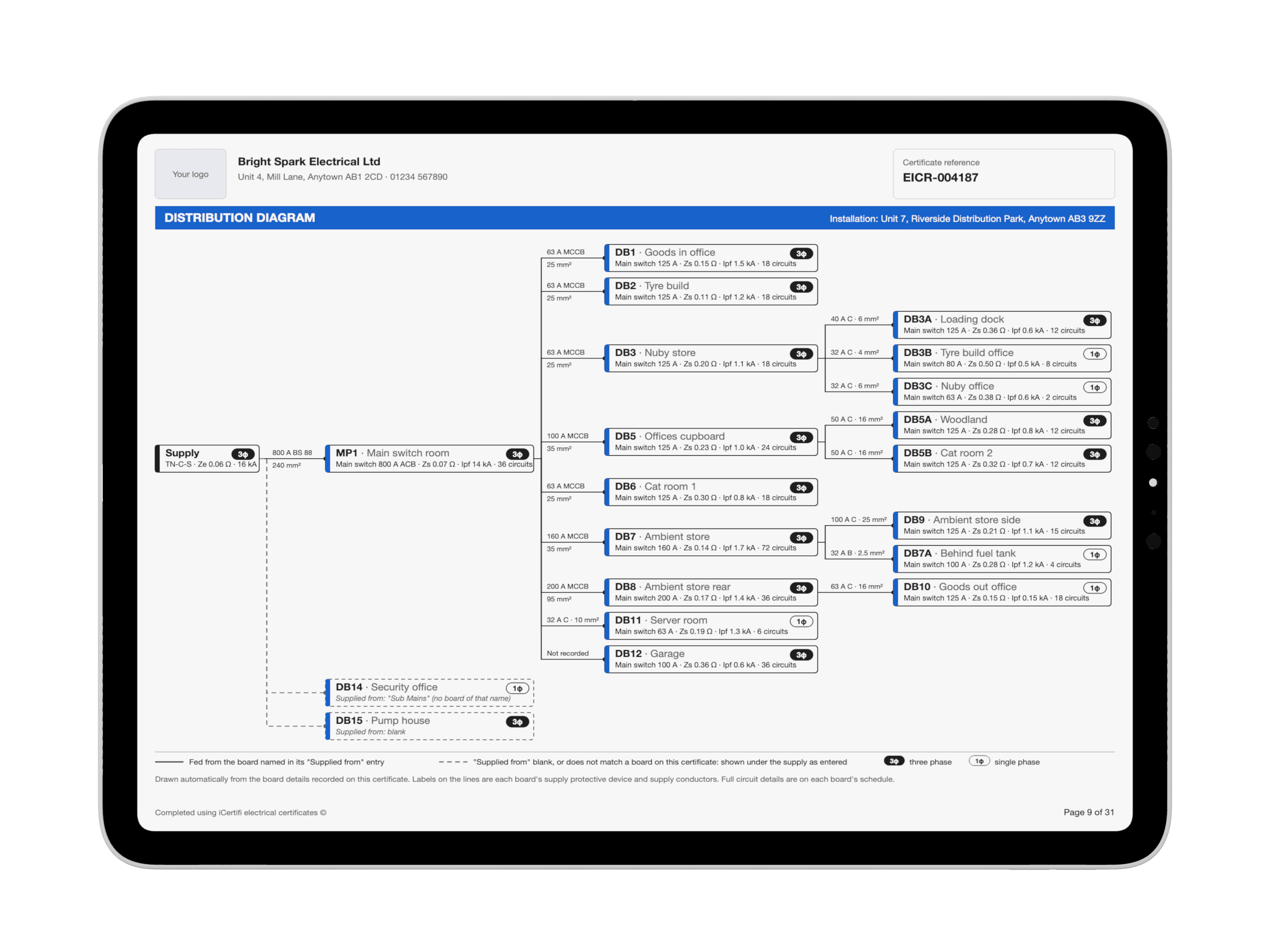
Drawn from what you have already typed
There is nothing new to fill in. Every board page already has a Supplied from box. iCertifi reads it, works out which board it names, and draws the line. Write DB1, DB1 way 3 or the board's location, and the board hangs off that one. Write Mains, Supply or Origin, and it hangs off the supply.
Each box on the diagram carries the details a reader looks for first:
- The supply: earthing arrangement, Ze and prospective fault current
- Each board: its reference and location, main switch rating, Zs, Ipf and the number of circuits
- A badge showing whether the board is single phase or three phase
- On every line: that board's supply protective device and supply conductor size, for example 63 A MCCB and 25 mm²
It prints in the same colour as the rest of your certificate, so it looks like part of the document, not a bolt-on.
Gaps show up, they do not hide
A board whose Supplied from box is blank, or names a board that is not on the certificate, is still drawn. It sits under the supply on a dashed line, with what was typed printed underneath, so you can see straight away which link is missing. A board is never guessed into the wrong place.
The board list in the app shows the same tree, each board indented under the one that feeds it, so what you see on screen is what prints.
Check board links does the detective work
On older certificates the Supplied from box is often blank, but the clue is in the circuit names. If circuit 4 on DB8 is called DB10 Supply, iCertifi notices. Tap Check board links under the board list and it asks you, one at a time: Is DB10 fed from DB8? Tap Yes and it fills in DB10's Supplied from for you. Nothing changes without a Yes.
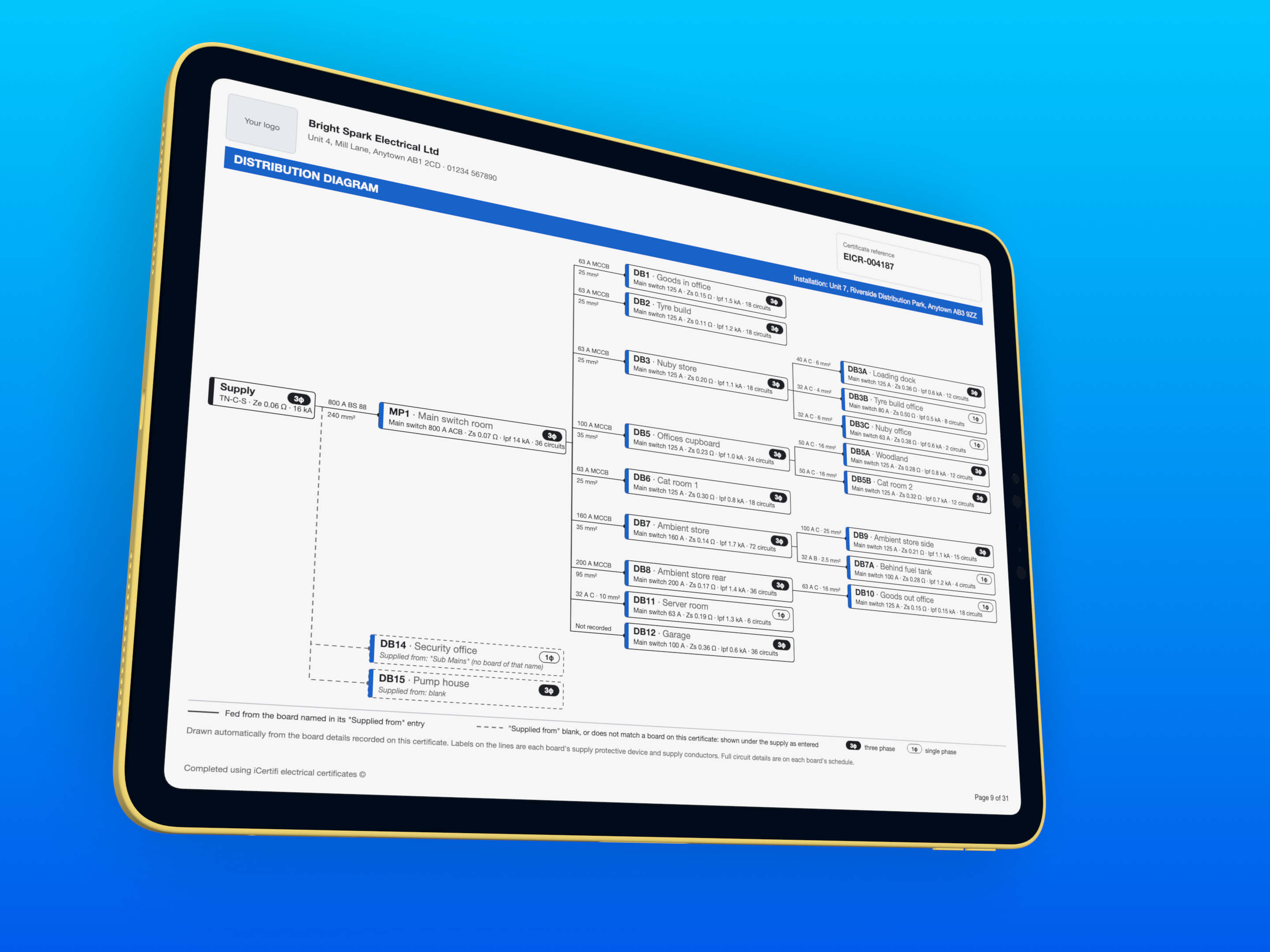
Big installations
A warehouse with twenty boards still fits: the rows close up to keep the whole job on one page where they can. When a job is too big for one page, the diagram carries on to a second page headed Distribution Diagram (Continued), keeping each branch together where it fits.
Turn it on
For every new certificateGo to Settings and turn on Board Diagram. It is off until you turn it on, and it applies to every certificate you have not sent yet, unless you have set that certificate by hand.
For one certificateOpen the certificate, tap the cog menu and choose Board Diagram Page. The menu shows whether it is on or off for that certificate.
Preview itPreview the certificate. The diagram page prints with the board schedules once the certificate has two or more boards.
A certificate you have already sent keeps the pages it was sent with, so changing the setting never changes paperwork your client already has.
Which certificates
Why it helps
For the client, the diagram answers the question twenty pages of schedules do not: which board to isolate, and where it is fed from. For the next electrician, it is the map they would otherwise sketch on the back of an envelope. For you, it is a certificate that looks like it came from a firm that knows the installation inside out, and it costs you nothing to produce.
Update iCertifi or iCertifi Cloud Pro from the App Store, then turn on Board Diagram in Settings.